How to Update Our Agency Profile and Branch Offices?
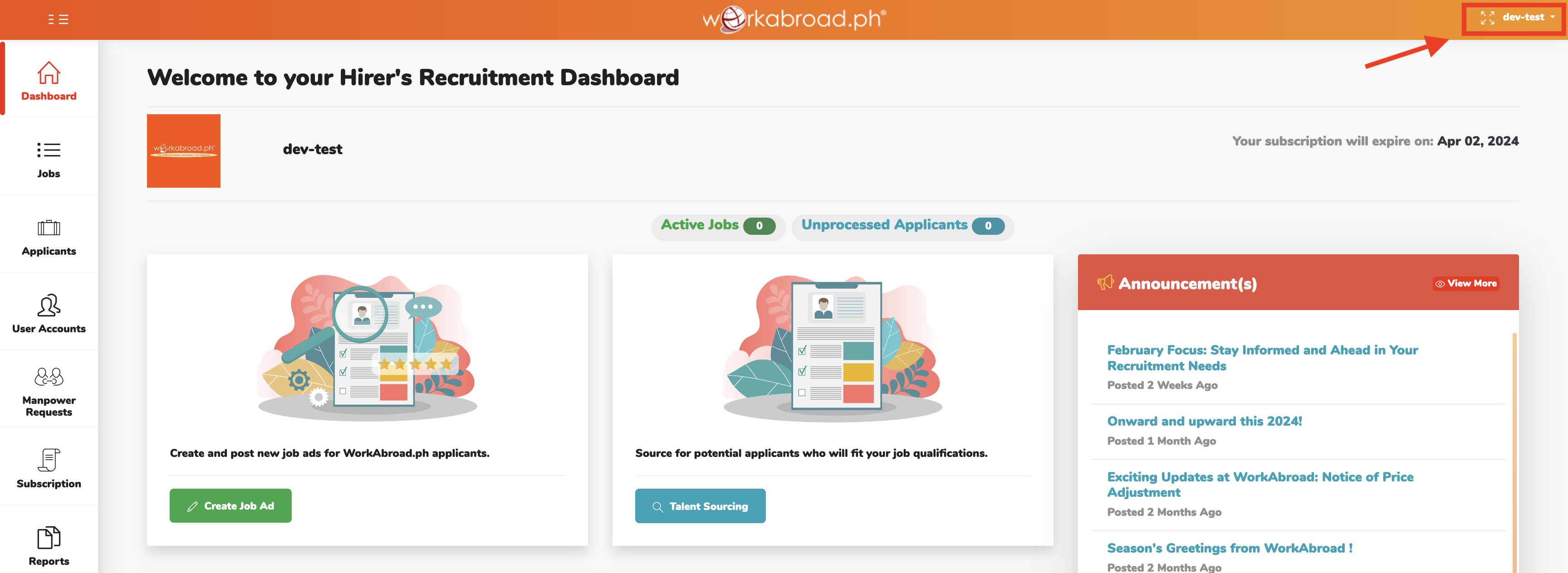
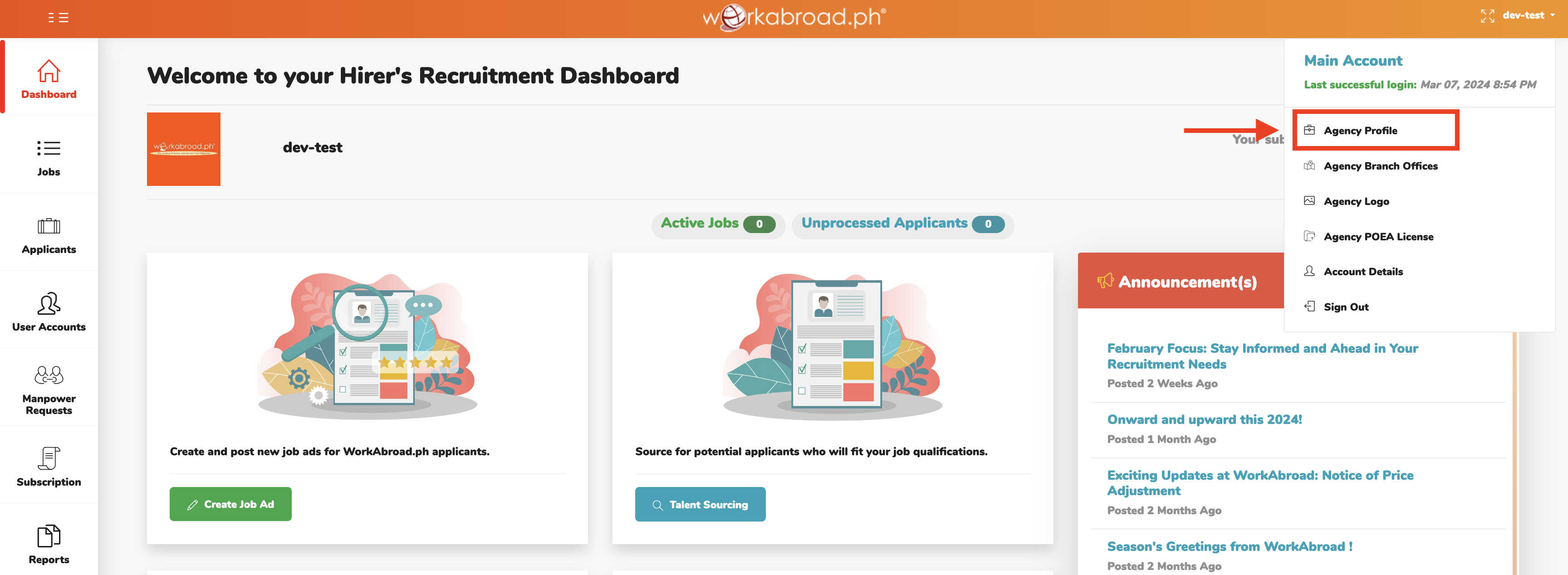
1. On the upper right corner of your Hirers' Recruitment Dashboard homepage, click your 'Login ID' and choose 'Agency Profile' from the dropdown menu.
2. Input 'Agency Introduction'. Click 'Add Map Location' to set up Agency Map.
3. Be sure to click 'Save' once done.
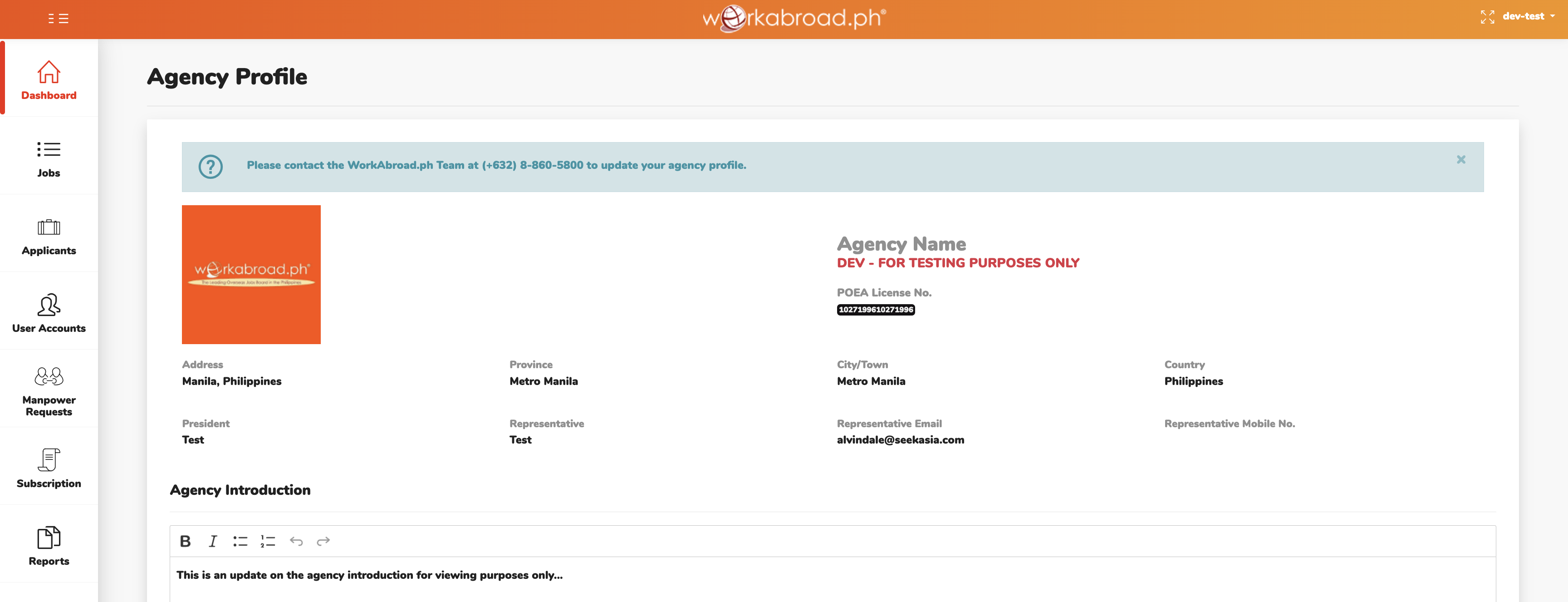
Important Reminders: Information on the upper portion of your Agency Profile may only be edited by the Workabroad.ph Team upon 'submission required' documents.
Add / Update Branch Offices
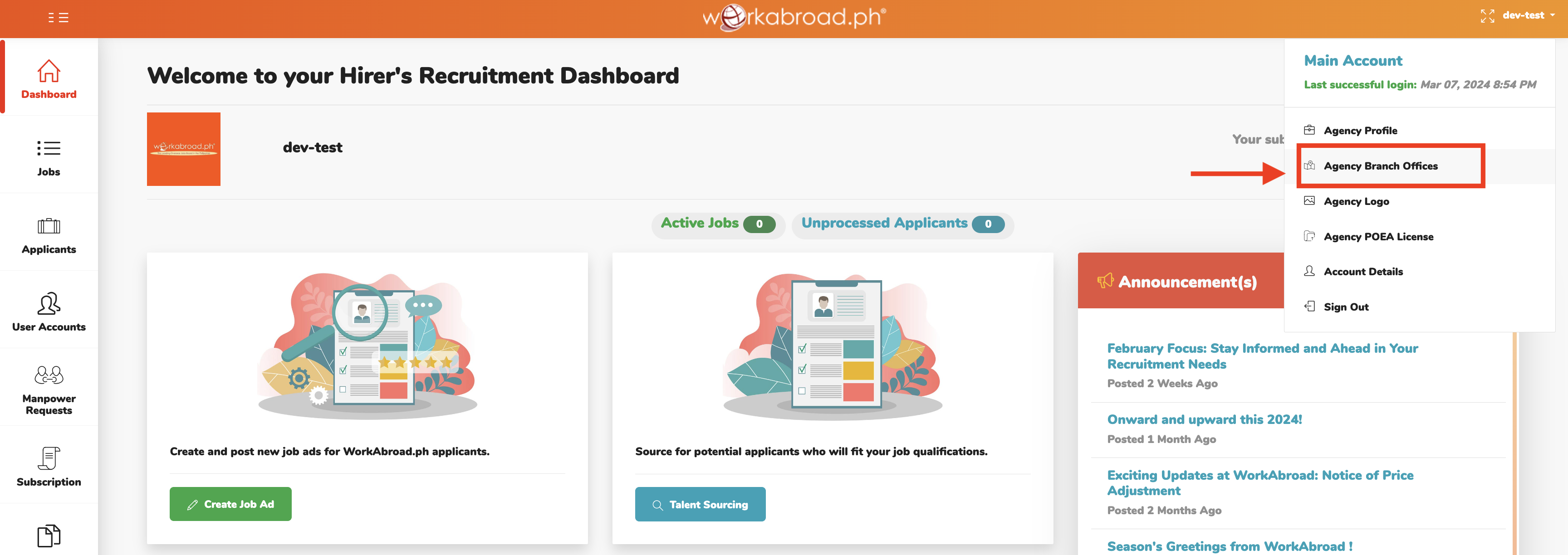
1. On the upper right corner of your Hirers’ Recruitment Dashboard homepage, click your 'Login ID' and choose 'Agency Branch Offices' from the dropdown menu.
2. Click 'Add New' to add branch.
3. Input branch location, branch authority number, address, province and telephone number. Click 'Add Map Location' to set up Agency Branch Map.
4. Click 'Add Branch' once done. 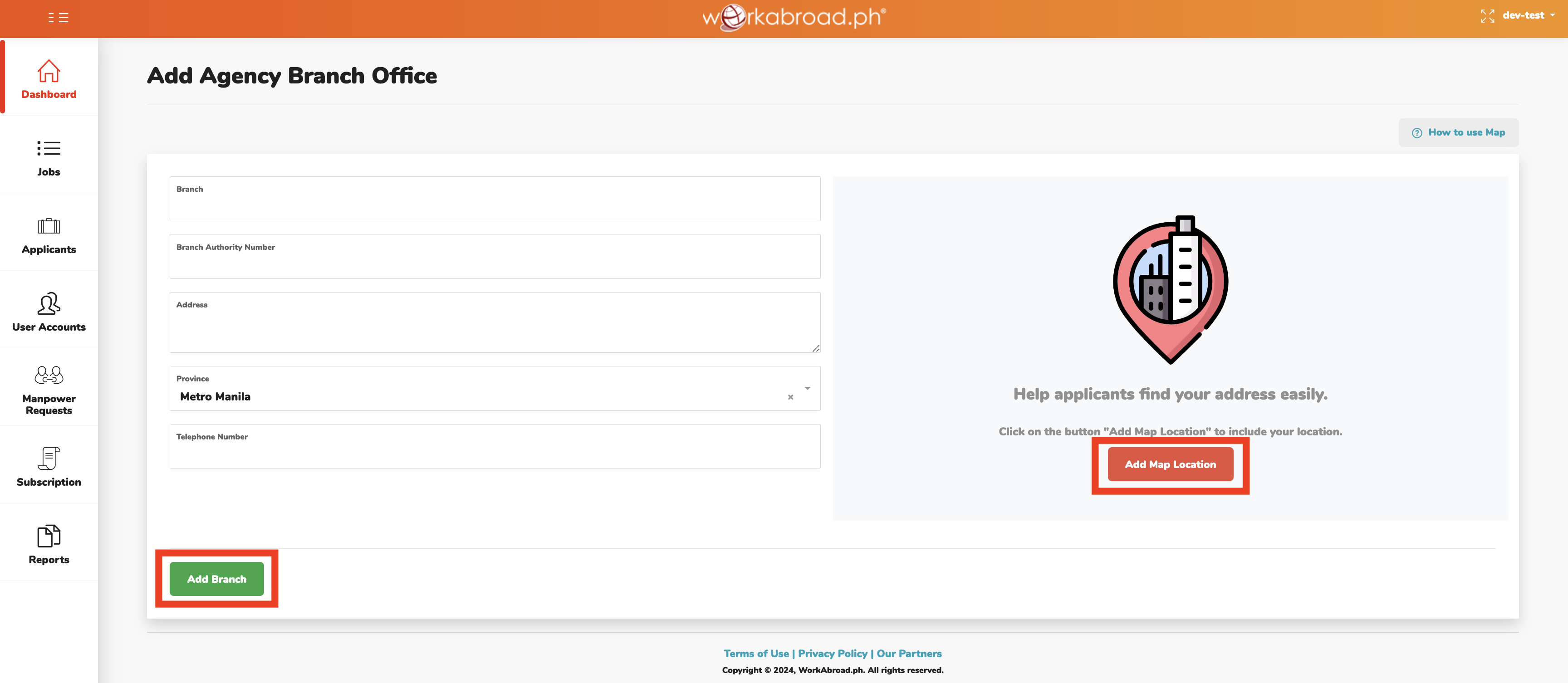
5. To update existing branch office data, click 'pen icon' (same row as the input you wish to edit), modify details and click 'Update Branch'.
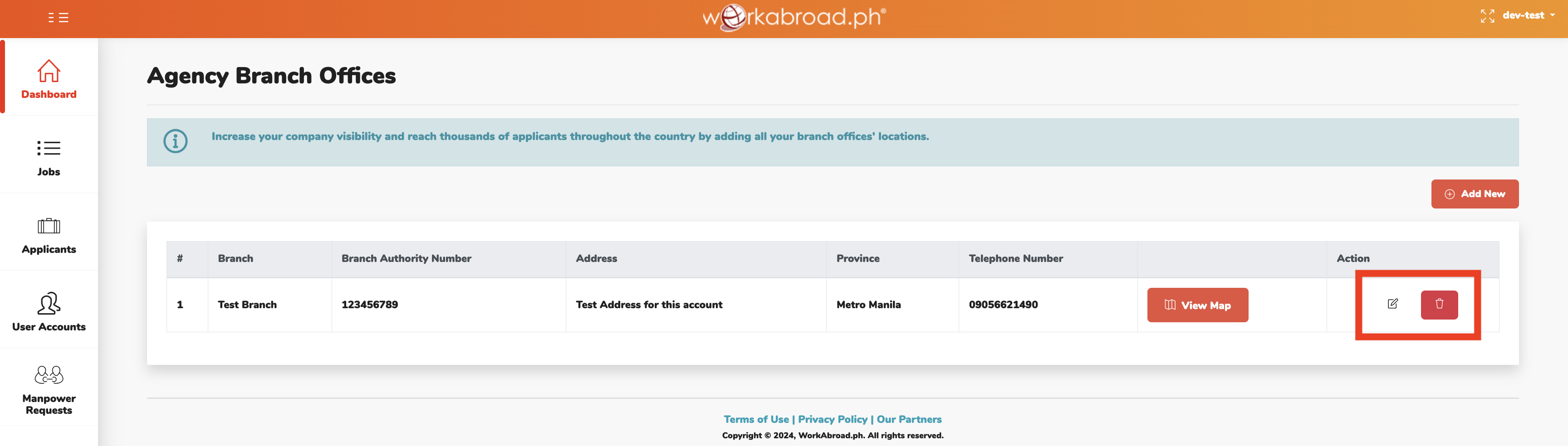
6. Click ‘trash icon’ if you wish to delete the record. Confirm action by clicking ‘Yes’ in the question prompt, and ‘Cancel’ if otherwise.
Important Reminders: Information on the upper portion of your Agency Profile may only be edited by the Workabroad.ph Team upon submission of required documents.